Introduction
PDF is the de-facto standard for contracts, specifications, reports, and regulatory filings — and with multiple versions in circulation, tracking down exactly what changed between two files quickly becomes tedious. Scrolling through documents side by side and annotating differences by hand does not scale, and even purpose-built tools like Adobe Acrobat’s Compare feature require manual intervention for every pair of files.
GroupDocs.Comparison for .NET lets you run PDF comparison entirely from code and choose exactly how the result is presented. Version 26.4 introduced a dedicated PdfCompareOptions class with three output display modes:
- Inline (default) — a single merged PDF where deletions and insertions are highlighted in different colours on the same pages. This is the classic behaviour and is the easiest result to share as a standalone file.
- Side‑by‑Side — each result page shows the source and target pages placed next to each other, with no content overlap. Ideal when documents differ heavily and mixing content on one page would be confusing.
- Interleaved — the result contains alternating pages: odd pages come from the source (deletions highlighted), even pages from the target (insertions highlighted). Changes are represented as native PDF annotations — a built‑in PDF object type that carries metadata such as the change type and author name. Most PDF viewers (Adobe Acrobat Reader, Foxit, etc.) let users open the annotations panel and accept or delete individual annotations, making it a lightweight review workflow without any extra software. Opening this file in a “Two Page View” PDF reader produces a natural left/right comparison.
In this article we will walk through all three modes with working C# examples, explore PdfCompareOptions and its properties, and briefly cover how the same task can be done manually in Adobe Acrobat.
Comparing PDFs in Adobe Acrobat
Before diving into the programmatic approach, it is worth knowing what Adobe Acrobat Pro offers out of the box. Acrobat’s built‑in Compare Files tool (available under Tools → Compare Files) produces a side‑by‑side report that highlights text changes, image differences, and formatting shifts.
To run a comparison in Acrobat Pro:
- Open Acrobat Pro and choose Tools → Compare Files.
- Select the Older File (source) and the Newer File (target).
- Click Compare. Acrobat generates an interactive comparison report with a summary page and inline change markers.
This works well for occasional manual reviews. However, Acrobat’s compare tool has significant limitations when comparison needs to be part of an automated pipeline.
When comparison must happen on a server, inside a CI/CD pipeline, or as part of a custom review workflow, a code-first library is the right tool.
Prerequisites
Before you start:
- .NET 6.0 or later.
- GroupDocs.Comparison for .NET 26.4 or later — install via NuGet:
dotnet add package GroupDocs.Comparison
- A license file (
GroupDocs.Comparison.lic). Without it the library runs in evaluation mode with watermarks and page-count limits. You can request a temporary license for testing. - Two PDF files to compare — we will call them
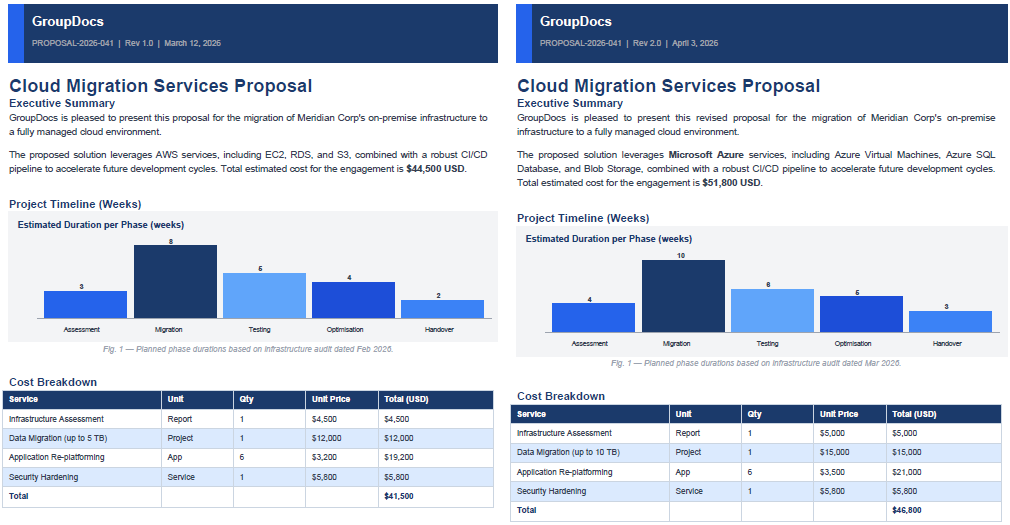
source.pdfandtarget.pdf. Example content:
source.pdf |
target.pdf |
|---|
Mode 1: Inline Comparison (Default)
When to use: you want a single, self‑contained PDF file that anyone can open and immediately see what changed — without needing a special viewer or a two‑page layout. A typical scenario is sharing a redlined contract draft with a counterparty.
using GroupDocs.Comparison;
using GroupDocs.Comparison.Options;

using (var comparer = new Comparer("source.pdf"))
{
    comparer.Add("target.pdf");

    var options = new PdfCompareOptions
    {
        DisplayMode = PdfCompareOptions.ComparisonDisplayMode.Inline
    };

    comparer.Compare("result_inline.pdf", options);
}
Note:
Inlineis the default value ofDisplayMode, so theoptionsblock above is optional. A plaincomparer.Compare("result_inline.pdf")call produces the same output.
Resulting document in Inline mode:

What happens under the hood:
- Deleted content from the source document is highlighted in one colour (red by default).
- Inserted content from the target document is highlighted in another colour (green by default).
- Both sets of changes coexist on the same pages, so the result is compact but can look busy when documents differ heavily. With substantial text edits, deleted and inserted content may physically overlap on the page — for example, a replaced paragraph renders on top of the original one, producing an unreadable jumble. In such cases
SideBySideorInterleavedmode is a better choice.
Mode 2: Side‑by‑Side Comparison
When to use: the two documents differ heavily and placing deletions and insertions on the same page would make the result hard to read. Side‑by‑Side keeps source and target content strictly separated, making it easy to scan each page at a glance.
using GroupDocs.Comparison;
using GroupDocs.Comparison.Options;

using (var comparer = new Comparer("source.pdf"))
{
    comparer.Add("target.pdf");

    var options = new PdfCompareOptions
    {
        DisplayMode = PdfCompareOptions.ComparisonDisplayMode.SideBySide
    };

    comparer.Compare("result_side_by_side.pdf", options);
}
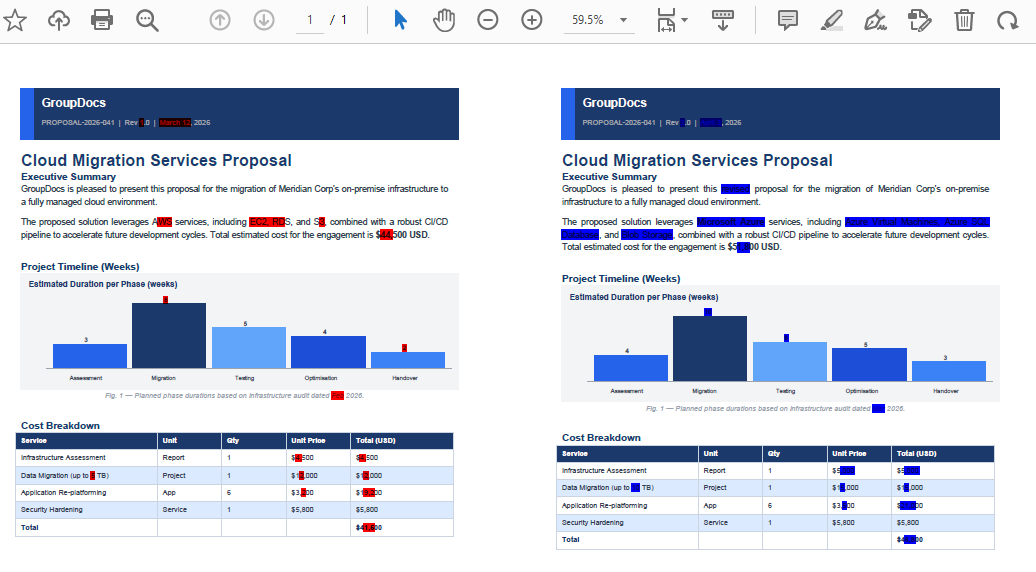
Resulting document in Side‑by‑Side mode:
What happens under the hood:
- Each result page is effectively a wide canvas split into two halves.
- The left half shows the corresponding source page with deletions highlighted.
- The right half shows the target page with insertions highlighted.
- Content from the two documents never overlaps, so even heavily edited pages remain readable.
Mode 3: Interleaved Comparison
When to use: you want to review changes page by page in a standard PDF reader using its Two Page View (or “Facing Pages”) mode. Each source page sits on the left, its corresponding target page on the right — the physical page layout mirrors what Side‑by‑Side renders on a single canvas, but every page is kept at full size.
using GroupDocs.Comparison;
using GroupDocs.Comparison.Options;

using (var comparer = new Comparer("source.pdf"))
{
    comparer.Add("target.pdf");

    var options = new PdfCompareOptions
    {
        DisplayMode = PdfCompareOptions.ComparisonDisplayMode.Interleaved,
        AnnotationAuthorName = "GroupDocs"
    };

    comparer.Compare("result_interleaved.pdf", options);
}
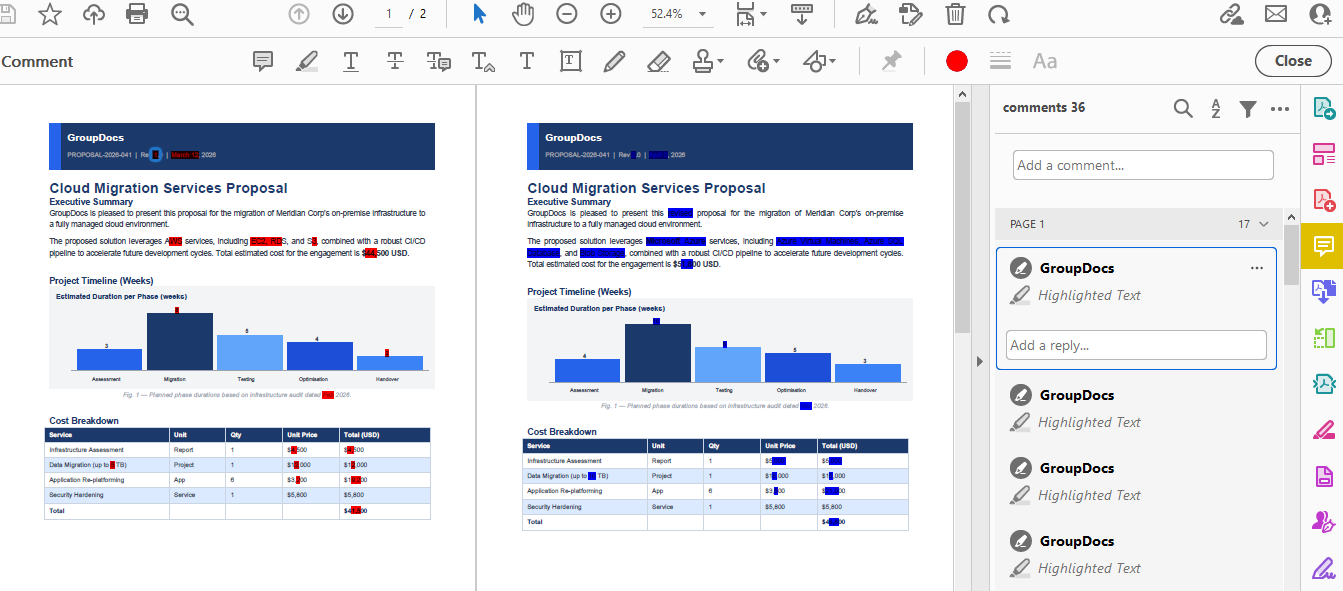
Resulting document in Interleaved mode (shown in Two Page View):
What happens under the hood:
- The result document contains
2 × Npages for anN-page source/target pair. - Odd-numbered pages (1, 3, 5 …) are source pages with deletions highlighted.
- Even-numbered pages (2, 4, 6 …) are target pages with insertions highlighted.
AnnotationAuthorNamestamps the author name on PDF annotations produced during comparison — useful when the result feeds into a review workflow where multiple authors’ comments must be distinguishable.
Tip: open the result in Adobe Acrobat Reader or any viewer that supports View → Page Display → Two Page View to get the intended left/right layout automatically.
Limiting Comparison to a Page Range
All three modes support page‑range filtering via the PagesSetup property. This is useful when only a specific chapter or section of a large document has changed and you want to skip the rest.
using GroupDocs.Comparison;
using GroupDocs.Comparison.Options;

using (var comparer = new Comparer("source.pdf"))
{
    comparer.Add("target.pdf");

    var options = new PdfCompareOptions
    {
        DisplayMode = PdfCompareOptions.ComparisonDisplayMode.SideBySide,
        PagesSetup = new PagesSetup
        {
            StartPage = 3,
            EndPage = 10
        }
    };

    comparer.Compare("result_pages_3_to_10.pdf", options);
}
When PagesSetup is null (or not set), all pages are compared — the same behaviour as in previous versions.
Exploring PdfCompareOptions
PdfCompareOptions is a PDF-specific subclass of CompareOptions, following the same pattern as WordCompareOptions introduced in version 26.2. It groups all PDF-only settings in one place so you do not accidentally apply Word- or spreadsheet-specific options to a PDF job.
| Property | Type | Description |
|---|---|---|
DisplayMode |
ComparisonDisplayMode |
Controls result layout: Inline (default), SideBySide, or Interleaved. |
PagesSetup |
PagesSetup |
Page range to compare. When null, all pages are processed. |
CompareImagesPdf |
bool |
Whether to include embedded images in the comparison. |
AnnotationAuthorName |
string |
Author name stamped on PDF annotations (used in Interleaved mode). |
ImagesInheritanceMode |
enum | Controls which document provides images when image comparison is disabled. |
A fully configured example:
var options = new PdfCompareOptions
{
    DisplayMode = PdfCompareOptions.ComparisonDisplayMode.Interleaved,
    CompareImagesPdf = true,
    AnnotationAuthorName = "Review Bot",
    PagesSetup = new PagesSetup { StartPage = 1, EndPage = 5 }
};
The inherited CompareOptions base properties — InsertedItemStyle, DeletedItemStyle, ChangedItemStyle — are also available, letting you override the default highlight colours when needed.
Getting Changes Programmatically
Regardless of the display mode, you can retrieve a structured list of all detected differences via Comparer.GetChanges(). This is useful for building custom reports, feeding results into a review system, or collecting statistics about the scope of edits.
using (var comparer = new Comparer("source.pdf"))
{
    comparer.Add("target.pdf");

    comparer.Compare("result.pdf");

    var changes = comparer.GetChanges(); // returns ChangeInfo[]
    Console.WriteLine($"Total changes detected: {changes.Length}");
}
See the official API reference for details: Comparer.GetChanges.
Working with Password‑Protected PDFs
Password‑protected PDFs are fully supported. Pass the password via LoadOptions when creating the Comparer:
using GroupDocs.Comparison;
using GroupDocs.Comparison.Options;

using (var comparer = new Comparer("source_protected.pdf",
    new LoadOptions { Password = "secret" }))
{
    comparer.Add("target_protected.pdf", new LoadOptions { Password = "secret" });

    var options = new PdfCompareOptions
    {
        DisplayMode = PdfCompareOptions.ComparisonDisplayMode.SideBySide
    };

    comparer.Compare("result_protected.pdf", options);
}
Get a Free Trial
You can download GroupDocs.Comparison for .NET from the official releases page. For unrestricted testing, request a temporary license — no credit card required.
Frequently Asked Questions
Q: Do I need Adobe Acrobat or any other PDF software installed on the server? A: No. GroupDocs.Comparison is a standalone .NET library that reads and writes PDF files without any third‑party dependencies.
Q: Which display mode should I use by default?
A: Start with Inline — it produces the most compact result and is the easiest to share. Switch to SideBySide when heavy edits make the inline view hard to read, or use Interleaved when reviewers will open the result in a “Two Page View” PDF reader.
Q: Can I compare documents in formats other than PDF? A: Yes — the library supports Word documents, Excel spreadsheets, PowerPoint presentations, plain‑text files, and many more. The full list is in the documentation.
Q: What happens if I don’t set a license? A: The library runs in evaluation mode. Output documents will contain a watermark and only the first few pages are processed. A temporary license removes these restrictions for testing.
Q: Can I compare only images inside a PDF and ignore text changes?
A: Use CompareImagesPdf = true on PdfCompareOptions to include image comparison. To focus exclusively on images you can combine this with the ImagesInheritanceMode property; see the API reference for details.
Other Platforms
GroupDocs.Comparison ships as a native library for several runtimes — the Inline / Side‑by‑Side / Interleaved workflow described above is available across all of them:
- GroupDocs.Comparison for Java
- GroupDocs.Comparison for Python via .NET
- GroupDocs.Comparison for Node.js via Java
- GroupDocs.Comparison Cloud API — language‑agnostic REST API
The API surface is intentionally kept consistent across platforms, so the Comparer / PdfCompareOptions / DisplayMode concepts translate directly — only the syntax changes.
Conclusion
GroupDocs.Comparison for .NET 26.4 gives you precise, code‑driven control over how PDF comparison results are presented. Inline mode covers the most common use case — a single, shareable redlined PDF. SideBySide keeps heavily changed content clean and readable. Interleaved pairs naturally with any PDF viewer’s Two Page View for a full‑size page‑by‑page walkthrough. On top of that, page‑range filtering lets you target exactly the sections that matter, and PdfCompareOptions consolidates all PDF‑specific settings in one discoverable class.
Pick the mode that fits your workflow, or generate all three and let each audience choose their preferred view.