
4 Excel-to-PDF Layout Options Compared in Java
Companion sample repository (pending publication): excel-pdf-pagination-java
Excel-to-PDF pagination is a GroupDocs.Conversion workflow for Java that decides how spreadsheet rows and columns appear across output pages. The useful question is not simply whether conversion succeeds. It is whether the report arrives in a shape the reader can use. This comparison runs the same workbook through four policies on version 26.10 and records page count together with physical dimensions. Those two measurements tell different parts of the story.
Introduction
A worksheet is a flexible canvas; a PDF page has a physical boundary. That difference becomes visible when a report places related columns far apart or uses blank rows to separate sections. An export may preserve the spacing and split the table horizontally. Another setting may bring every column together by making the page wider. A third can remove gaps that the author deliberately placed between blocks. None of those outcomes can be judged from a success message alone.
The example uses a fictional, single-sheet report so the comparison stays reproducible. Data appears in eight populated columns, with empty columns between groups. Rows 1, 2, 3, 12, 13 and 40 contain markers. The workbook specifies A4 portrait paper and one-inch source margins. We keep that file unchanged while running four methods, then inspect the resulting PDFs instead of assuming that fewer pages means a better export.
Why a layout comparison matters
The options solve different problems. AllColumnsInOnePagePerSheet addresses horizontal grouping. SkipEmptyRowsAndColumns addresses blank spacing. OnePagePerSheet requests a sheet-level overview. A default conversion gives a control against which each policy can be judged. Keeping those cases separate makes the changes easier to explain to the person approving the report.
For Java 26.10, the all-columns and skip-empty flags both default to false. That matters when code relies on implicit settings rather than expressing an export policy. The underlying options are not all new features of this release. This article documents their tested interaction with the included fixture on 26.10. It does not present a speed benchmark or claim fixed page counts for arbitrary workbooks.
Which option keeps an Excel report on A4?
On the included fixture, the default and skip-empty variants produce A4 pages, while all-columns and one-page-per-sheet produce custom sizes. That is a measured result, not a general A4 guarantee. Check your workbook’s page setup and inspect output dimensions before delivery. If a receiving system requires fixed paper size, make that requirement part of the acceptance test rather than relying on page count.
Prerequisites
Use JDK 11 or 17, Maven and GroupDocs.Conversion for Java 26.10. The project includes documents/report.xlsx and creates Result/ when it runs. A license covering the release is needed to complete unrestricted verification because evaluation limits can interrupt multi-page output. The distributed source contains a license placeholder; keep your real license outside the project. Each method opens a fresh Converter and closes it after saving its PDF.
Installation
The complete project supplies the GroupDocs repository and this Maven dependency. Run the command from the directory containing pom.xml so the relative document paths resolve. The Java blocks below are extracted method bodies, with imports and directory setup supplied by the full project. No spreadsheet editor is invoked by the example.
<dependency>
  <groupId>com.groupdocs</groupId>
  <artifactId>groupdocs-conversion</artifactId>
  <version>26.10</version>
</dependency>
mvn compile exec:java
Method 1: Establish the default export
Start with a Converter that receives otherwise unchanged SpreadsheetLoadOptions. This is the reference file for the comparison. The fixture’s blank rows and columns remain meaningful to its layout, and the wide sheet breaks horizontally. The result has three pages measuring approximately 595.44 by 841.68 points, which pdfinfo identifies as A4. Keep this output even if it is not the version you eventually deliver.
SpreadsheetLoadOptions options = new SpreadsheetLoadOptions();
try (Converter converter = new Converter("documents/report.xlsx", () -> options)) {
    converter.convert("Result/01-defaults.pdf", new PdfConvertOptions());
}
The baseline answers a practical question: what changes when a single flag is switched? Without it, a compact report might be attributed to an unrelated workbook edit or a different source file. I would save these comparison outputs with distinct names during integration, as the sample does. That makes a visual review less ambiguous. The original workbook remains unchanged, so the reviewer always has the same starting point.
Method 2: Keep all columns together
The second method enables AllColumnsInOnePagePerSheet. In the fixture, cells across columns A through L now appear on a single, wider PDF page. Empty spacing remains because SkipEmptyRowsAndColumns is still false. The PDF measures 1138.32 by 841.68 points. The height matches the baseline page height, but its width does not.
SpreadsheetLoadOptions options = new SpreadsheetLoadOptions();
options.setAllColumnsInOnePagePerSheet(true);
try (Converter converter = new Converter("documents/report.xlsx", () -> options)) {
    converter.convert("Result/02-all-columns.pdf", new PdfConvertOptions());
}
This can be useful for a reviewer who wants to follow one row across its related column groups. The trade-off is the physical page size. A PDF viewer may make the wide result look comfortable when fitted to a window, yet printing introduces another scaling decision. Also remember that this workbook fits vertically. More rows can make a different report behave differently; this setting does not establish a universal one-page-per-workbook rule.
Method 3: Remove empty spacing
The compact export enables SkipEmptyRowsAndColumns and leaves the other policies at their defaults. On the fixture, row markers that were separated by large blank regions move closer together. Empty column gaps also disappear. The output occupies two A4 pages instead of the baseline three. It can still split columns horizontally because the all-columns policy is not enabled in this method.
SpreadsheetLoadOptions options = new SpreadsheetLoadOptions();
options.setSkipEmptyRowsAndColumns(true);
try (Converter converter = new Converter("documents/report.xlsx", () -> options)) {
    converter.convert("Result/03-skip-empty.pdf", new PdfConvertOptions());
}
Use this variant when the gaps are incidental rather than part of the report design. A blank row can be a visual separator, a placeholder for a signature or part of a form. Removing it may make a numerical report shorter while making a structured form less useful. We deliberately keep this as an independent run. Combining it immediately with all-columns grouping would hide which setting caused each observed change.
Method 4: Put the whole sheet on one page
OnePagePerSheet groups the entire worksheet on one PDF page. Our input has one sheet, so the result contains one page. Its dimensions are 1138.32 by 638.237 points, different from both the baseline and the all-columns case. This is a sheet overview with a custom canvas. It is not evidence that the same report was fitted to A4 paper.
SpreadsheetLoadOptions options = new SpreadsheetLoadOptions();
options.setOnePagePerSheet(true);
try (Converter converter = new Converter("documents/report.xlsx", () -> options)) {
    converter.convert("Result/04-one-page.pdf", new PdfConvertOptions());
}
I would select this policy for a screen-based review only after opening the result at the zoom level the reader will use. A one-page thumbnail says little about small text on a dense report. The setting can be appropriate when page boundaries are a distraction, but its output still needs an acceptance check. Use a representative workbook before adopting it as the application’s default. The included fictional report provides a repeatable starting point rather than a universal layout specification.
Comparing methods: when to use each
| Export | Pages | Page size, points | Main trade-off |
|---|---|---|---|
| Defaults | 3 | 595.44 x 841.68 | Related columns can split |
| All columns together | 1 | 1138.32 x 841.68 | Wider physical page |
| Skip empty rows and columns | 2 | 595.44 x 841.68 | Intentional gaps disappear |
| One page per sheet | 1 | 1138.32 x 638.237 | Custom sheet-sized overview |
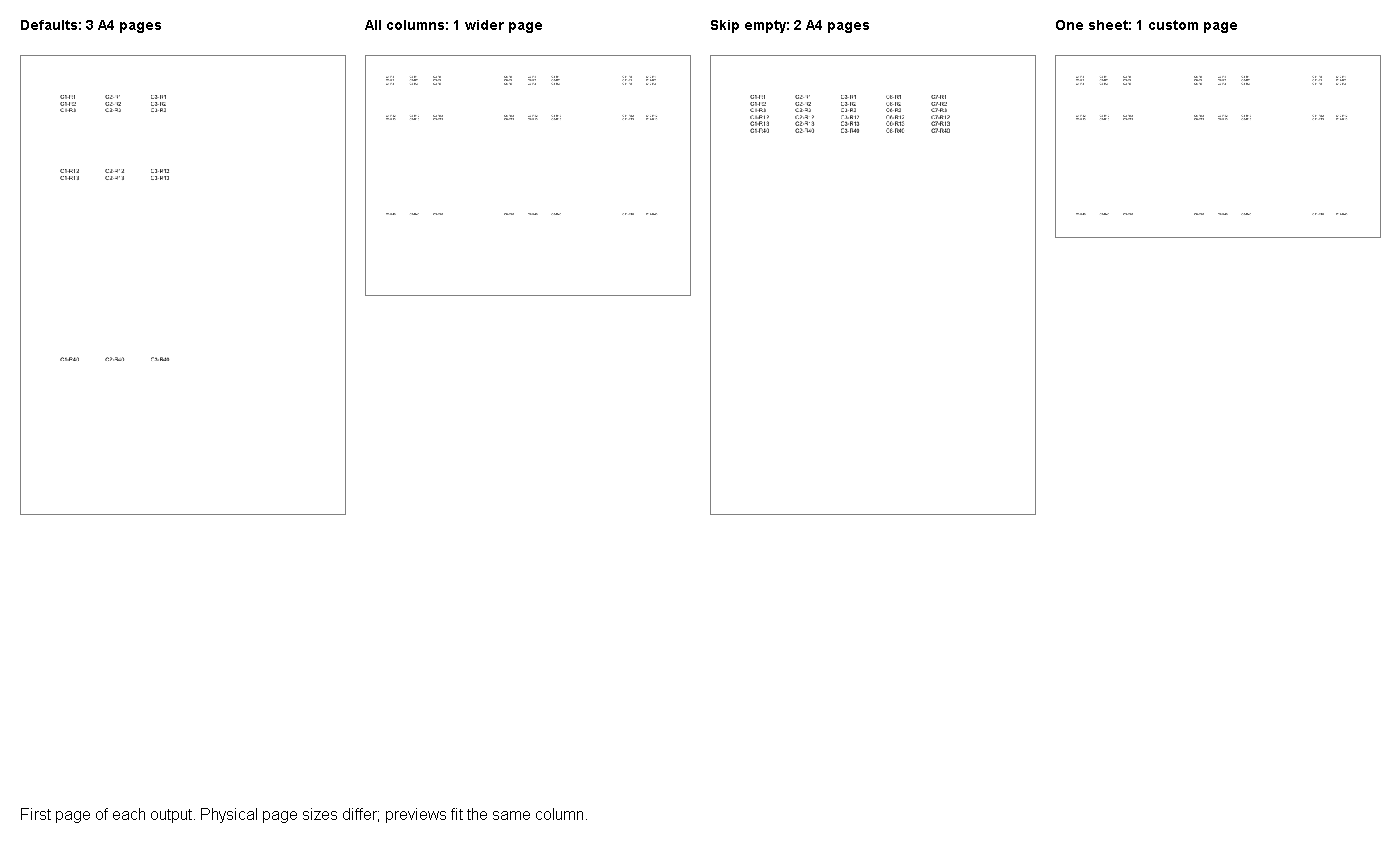
The image shows only the first page of each output. Its columns scale previews to fit the comparison, so the displayed sizes do not establish equal physical paper sizes. Use the table and the actual PDF properties for that decision. The complete files are written to Result/ when the project runs. Inspect the remaining pages of the default and compact versions before approval.
Best practices and tips
Write down the receiving system’s requirements first. A printer may need A4, while an internal reviewer may prefer a wide page. A form may need blank space that a data-only report can discard. Those choices belong in the export policy, not in an assumption that the shortest PDF is best. We would keep one representative workbook per report template and rerun the comparison after changing it.
Treat physical dimensions as test data. Page count tells you how much pagination occurred, but it does not tell you whether columns remain together or whether text is legible. The sample’s measured sizes came from Poppler pdfinfo after licensed execution on Java 11.0.2. The page previews were rendered separately. Neither step is a performance measurement, and neither replaces a review of the real report.
Keep margin claims separate from grouping claims. A distinct 26.10 check that set PdfConvertOptions margins to 36 points produced renders identical to the default spreadsheet output. This comparison therefore does not promise margin overrides through that path. If explicit margins are a requirement, investigate and verify them independently before presenting them as part of the solution.
Conclusion
Run the four methods on the supplied workbook, then compare a real approved report. Choose the grouping policy from the reader’s needs and the receiving system’s page-size requirements. Confirm spacing and physical dimensions before making it the default. Preserve the baseline so the next version upgrade has a concrete comparison.