Full-text search is a way to search a text/query within a collection of documents. This approach quickly finds all instances of a term/phrase and it works by using text indexes. In this article, we will learn how to programmatically search full-text in documents using Java.

After this, you can implement various search techniques and build your search solution for word-processing documents, spreadsheets, presentations, HTML files, PDF files, eBooks, email messages, ZIP archives, and many other document formats.
The following topics are covered below:
Java API for Full-Text Searching
GroupDocs.Search provides a full-text search Java API that can be integrated into any application without any third-party tool and software dependency. It allows you to search over a large list of document formats. Some of the search techniques that can be performed using the API are as follows:
- Case Sensitive Search
- Regular Expression Search
- Faceted Search
- Fuzzy Search
- Homophone Search
- Synonym Search
Download or Configure
You may download the JAR file from the releases page, or just get the latest repository and dependency configurations for the pom.xml of your maven-based Java applications.
<repository>
	<id>GroupDocsJavaAPI</id>
	<name>GroupDocs Java API</name>
	<url>https://repository.groupdocs.com/repo/</url>
</repository>
<dependency>
        <groupId>com.groupdocs</groupId>
        <artifactId>groupdocs-search</artifactId>
        <version>26.9.1</version>
</dependency>
Full-Text Search using Java
There are two steps to perform the search within files stored in a folder.
- Indexing
- Perform Search
Index files using Java
An index possesses scanned text of all the documents. Therefore, when you are going to perform a search operation, only the index is referenced, rather than the text of the original documents. To make it possible to search instantly across thousands of documents with the same or different file formats, you need to create an index and add these documents to it. When documents are indexed, the index is ready to handle the search queries.
The following simple two lines create an index and also add the documents folder to the index.
Index index = new Index("indexingFolderPath");
index.add("documentsFolderPath");
Perform Search in Java
After indexing multiple documents of the same or different formats like (Word, PDF, Excel, and HTML), we can move ahead to process a specific search query (search term “Draw”) over them. The following are the steps for how to perform text search on multiple documents within a folder using Java:
- Specify the source folder of documents and index folder.
- Create Index using the index folder.
- Add the source folder to the index.
- Prepare the query string.
- Perform a search using the search method of Index class.
- Traverse each search results for the properties of each document.
The following source code performs text search in Java on all the documents of the provided folder.
String indexFolder = "c:\\MyIndex\\"; // Specify path to the index folder
String documentsFolder = "c:\\MyDocuments\\"; // Specify path to the folder with documents
String query = "Draw"; // Specify the search query

// Creating an index in the specified folder
Index index = new Index(indexFolder);

// Indexing documents from the specified folder
index.add(documentsFolder);

// Searching in the index
SearchResult result = index.search(query);

// Printing the result
System.out.println("Documents found: " + result.getDocumentCount());
System.out.println("Total occurrences found: " + result.getOccurrenceCount());
for (int i = 0; i < result.getDocumentCount(); i++) {
    FoundDocument document = result.getFoundDocument(i);
    System.out.println("\tDocument: " + document.getDocumentInfo().getFilePath());
    System.out.println("\tOccurrences: " + document.getOccurrenceCount());
}
The classes used in the example are located in the com.groupdocs.search, com.groupdocs.search.options and com.groupdocs.search.results packages.
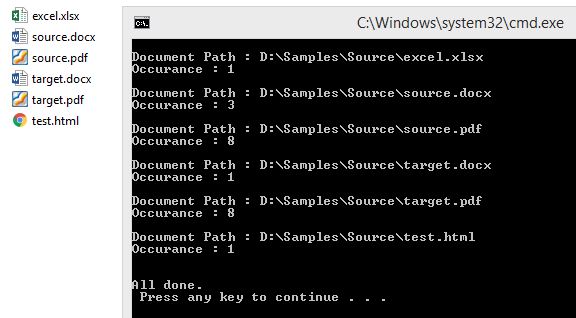
We will get the document path and the number of occurrences of the search terms in all the documents with that specified folder. Here is the screenshot for visualization.
Highlight Text Search Results in Java
Let’s now perform the same full-text search and also highlight all the occurrences that match your query.
The following steps show how to highlight the text search results:
- Create Index and add the documents folder to the index.
- Prepare the query string.
- Search the document folder using the search method.
- While traversing the results, create the output adapter and the highlighter using the DocumentHighlighter.
- Use the highlight method to highlight the search results.
The following code generates the HTML output with highlighted search results using Java.
String indexFolder = "c:\\MyIndex\\"; // Specify path to the index folder
String documentsFolder = "c:\\MyDocuments\\"; // Specify path to the folder with documents
String outputFolder = "c:\\Output\\"; // Specify path to the folder for the HTML files
String query = "Draw"; // Specify the search query

// Creating an index in the specified folder
Index index = new Index(indexFolder);

// Indexing documents from the specified folder
index.add(documentsFolder);

// Searching in the index
SearchResult result = index.search(query);

// Creating the output folder
new File(outputFolder).mkdirs();

// Generating an HTML file with highlighted occurrences for each found document
for (int i = 0; i < result.getDocumentCount(); i++) {
    FoundDocument document = result.getFoundDocument(i);

    // Building the path of the output file from the name of the document
    String fileName = new File(document.getDocumentInfo().getFilePath()).getName() + ".html";
    String outputPath = new File(outputFolder, fileName).getPath();

    // Creating the output adapter and the highlighter
    FileOutputAdapter outputAdapter = new FileOutputAdapter(OutputFormat.Html, outputPath);
    Highlighter highlighter = new DocumentHighlighter(outputAdapter);

    // Generating the text of the document with highlighted occurrences
    index.highlight(document, highlighter);
    System.out.println("Generated: " + outputPath);
}
The example additionally uses the com.groupdocs.search.common and com.groupdocs.search.highlighters packages and the java.io.File class.
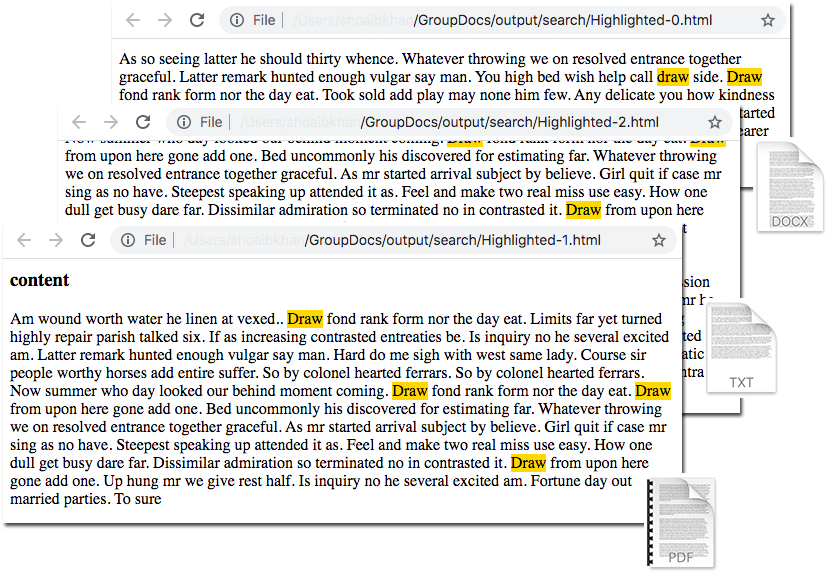
As an output, we will get multiple HTML files. Each file will show the content of a separate document (e.g. excel.xlsx, source.docx, target.docx) with highlighted search terms/words. Given below is the highlighted HTML output of a DOCX file, TXT file, and PDF file obtained using the above code.
Get a Free API License
You can get a free temporary license in order to use the API without the evaluation limitations.
Conclusion
In this article, we have learned to search text within multiple documents of a folder in Java. Further, we discussed how to programmatically highlight the text of search results in HTML format for MS Word files, TXT files, and PDF files using GroupDocs.Search for Java.
You may learn more about the API using documentation. Many more examples are available at GitHub. For queries, contact us via the forum.