مقدمه
سازمانها اغلب نیاز دارند تا هزاران فایل – قراردادها، ارائهها، فاکتورها – را در یک عملیات یکپارچه برند یا محافظت کنند. انجام این کار بهصورت دستی به این معناست که هر سند را باز کنید، لوگو یا اعلان محرمانگی را وارد کنید و دوباره ذخیره کنید. نه تنها این فرآیند زمانبر است، بلکه خطای انسانی را وارد میکند و خطر واترمارکهای تکراری یا فایلهای از دست رفته را بهوجود میآورد.
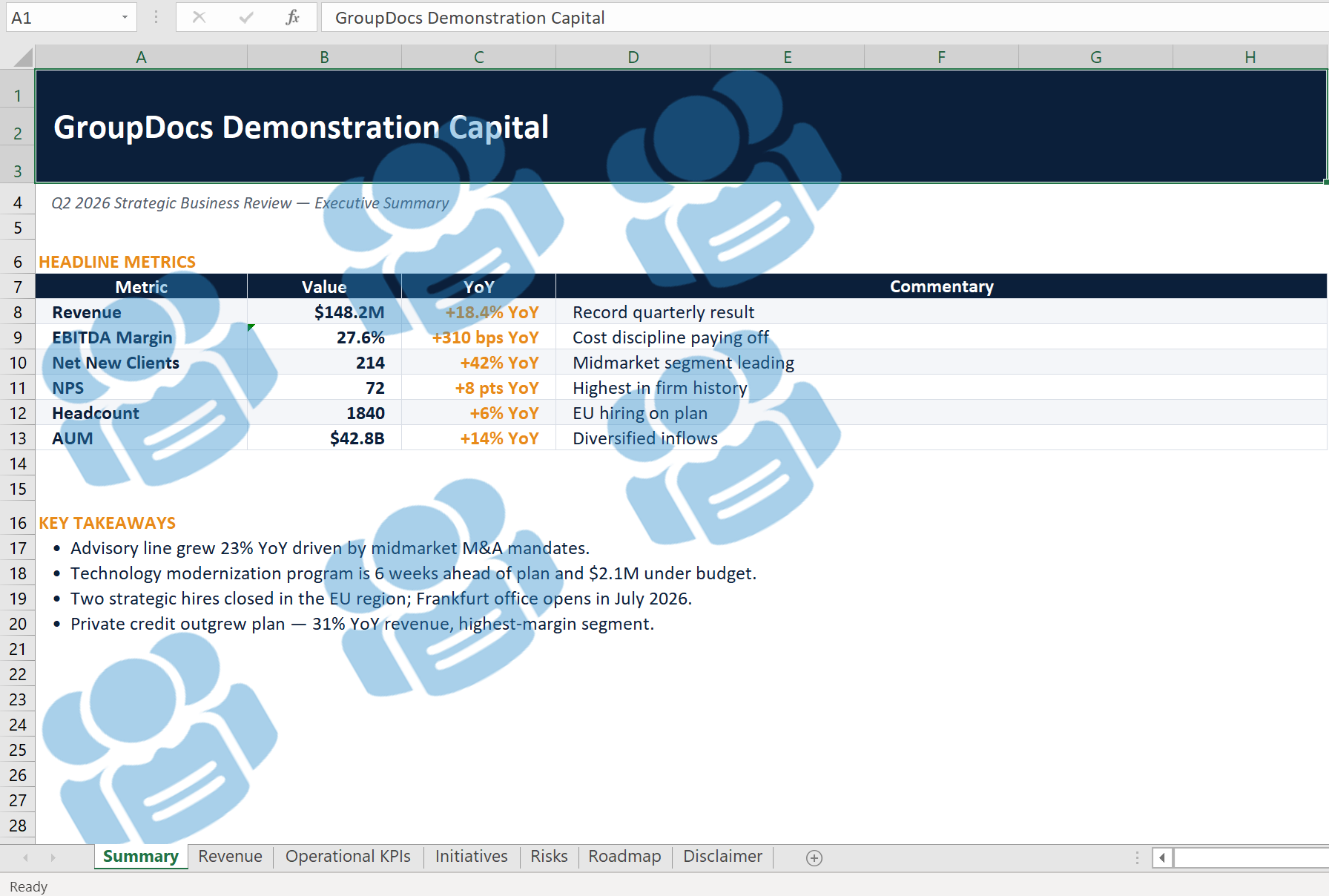
GroupDocs.Watermark for .NET این مشکل را با یک API یکپارچه که بر روی PDF، DOCX، PPTX، XLSX و فرمتهای رایج تصویر کار میکند، حل میکند. پروژه نمونه شامل چهار نوع سند (DOCX، PDF، XLSX، PPTX) است تا هر حالت لولهکشی بر روی فرمتهای دنیای واقعی اجرا شود. در این آموزش یک لولهکشی دستهای کامل برای واترمارک را مرور میکنیم که:
- یک لایسنس را بارگذاری میکند (یا در صورت عدم وجود به حالت ارزیابی میرود).
- یک پوشه را اسکن میکند و فقط فرمتهایی را که کتابخانه میتواند پردازش کند، فیلتر مینماید.
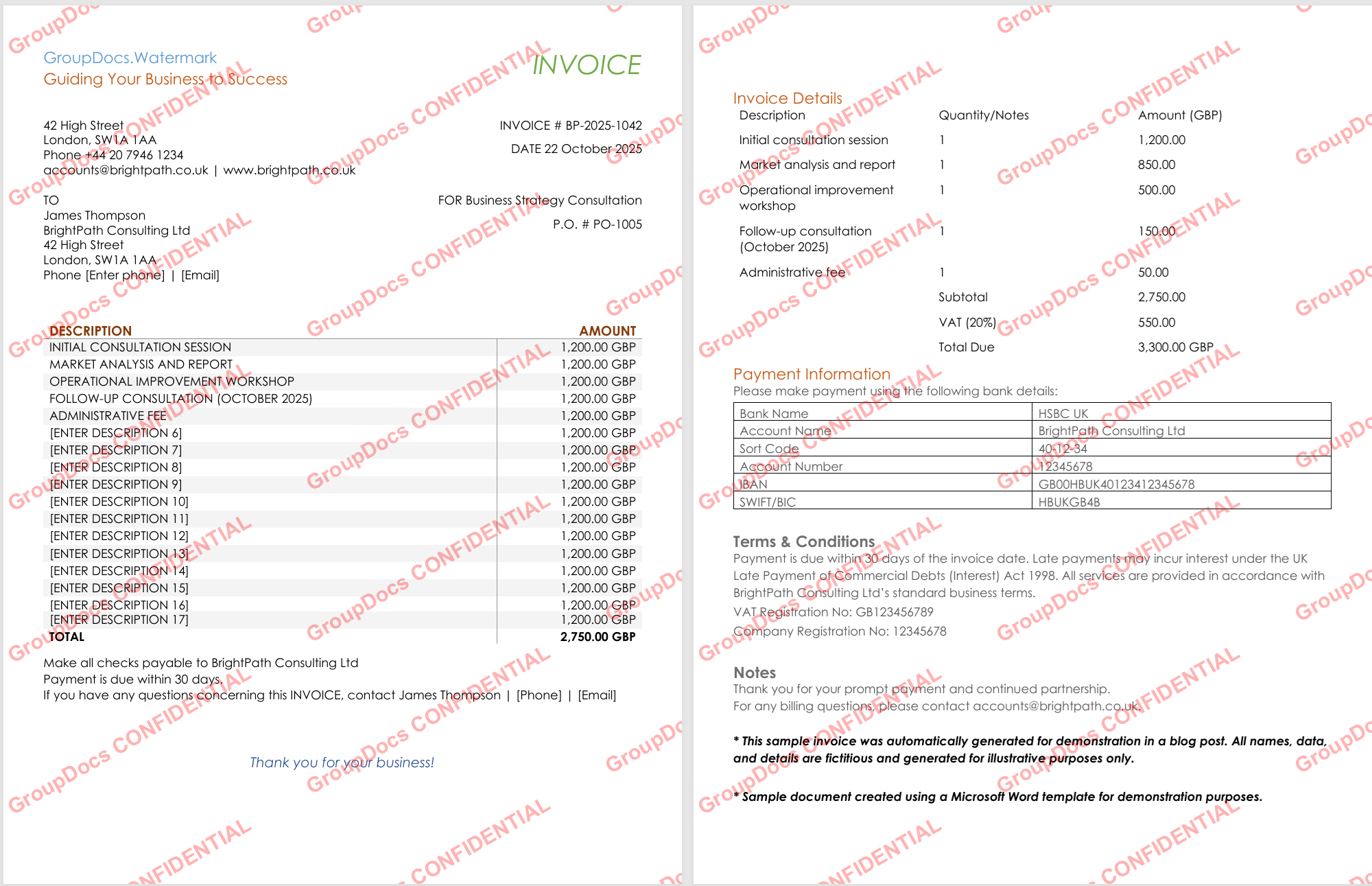
- یک واترمارک متنی کاشیشده را به هر سند اعمال میکند.
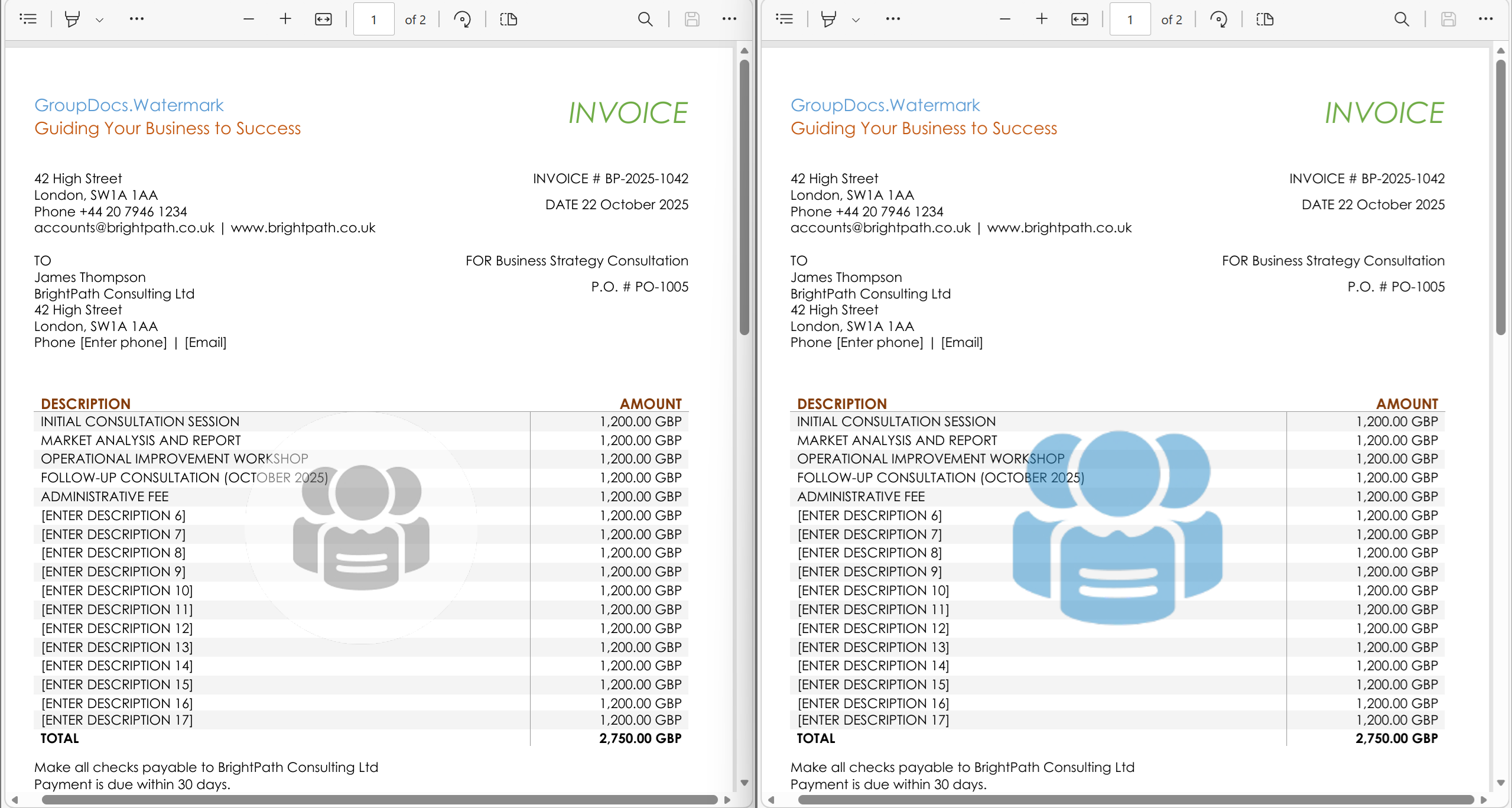
- یک واترمارک لوگو کاشیشده با شفافیت و چرخش سفارشی اعمال میکند.
- واترمارک را فقط زمانی که قبلاً وجود نداشته باشد اضافه میکند (پردازش ایندومنت).
- یافتن و جایگزینی یک لوگوی قدیمی شرکت با لوگوی جدید.
در پایان، یک راهحل آماده‑به‑اجرا خواهید داشت که میتوانید در هر پروژهی .NET بکار ببرید.
چرا واترمارکگذاری دستهای مهم است
- قابلیت مقیاسپذیری – پردازش دهها یا هزاران فایل با یک حلقهٔ واحد.
- یکنواختی – همان سبک بصری بر تمام اسناد اعمال میشود و از انحراف برند جلوگیری میکند.
- ایمنی – منطق ایندومنت از ایجاد واترمارکهای تکراری هنگام اجرای مجدد لولهکشی جلوگیری میکند.
- آمادگی برای آینده – کد جایگزینی لوگو به شما امکان میدهد بازبرندینگ را بدون دستکاری هر فایل بهصورت دستی انجام دهید.
پیشنیازها
- .NET 6.0 یا بالاتر.
- بسته NuGet GroupDocs.Watermark (
dotnet add package GroupDocs.Watermark). - یک فایل لایسنس (موقت یا دائمی). مثالها در صورت عدم وجود فایل در حالت ارزیابی کار میکنند.
- دو پوشه روی دیسک:
InputFolder– شامل اسناد منبع.OutputFolder– جایی که نسخههای واترمارکشده ذخیره میشوند.
گام ۱ – بارگذاری لایسنس
کتابخانه برای اجرا بدون محدودیتهای ارزیابی به لایسنس نیاز دارد. قطعه کد زیر سعی میکند یک فایل لایسنس را بارگذاری کند و در صورت عدم یافتن بهصورت ساکت ادامه میدهد.
try
{
    var license = new License();
    license.SetLicense(LicensePath);
    Console.WriteLine("License applied successfully.");
}
catch
{
    Console.WriteLine("Warning: License not found. Running in evaluation mode.");
}
نکته کلیدی: متغیر LicensePath باید به فایل .lic شما اشاره کند. اگر فایل موجود نباشد، کد ادامه مییابد که برای تست سریع مفید است.
گام ۲ – کشف فایلهای پشتیبانیشده
GroupDocs.Watermark فقط میتواند مجموعهٔ خاصی از پسوندها را پردازش کند. تابع کمکی زیر یک پوشه را اسکن میکند، مجموعهای از پسوندهای پشتیبانیشده را با استفاده از FileType.GetSupportedFileTypes() میسازد و فقط فایلهایی که با این پسوندها مطابقت دارند را برمیگرداند.
if (!Directory.Exists(folderPath))
{
    Console.WriteLine($"Folder not found: {folderPath}");
    return new List<string>();
}

var supportedExtensions = FileType.GetSupportedFileTypes()
    .Select(ft => ft.Extension.ToLowerInvariant())
    .ToHashSet();

var supportedFiles = Directory.GetFiles(folderPath, "*.*", SearchOption.AllDirectories)
    .Where(f => supportedExtensions.Contains(Path.GetExtension(f).ToLowerInvariant()))
    .ToList();

Console.WriteLine($"Found {supportedFiles.Count} supported file(s) in '{folderPath}'.");
return supportedFiles;
نکته کلیدی: این متد تضمین میکند که حلقههای بعدی واترمارک هرگز با فرمت پشتیبانینشدهای مواجه نشوند، که در غیر این صورت استثنای زمان اجرا رخ میدهد.
گام ۳ – اعمال واترمارک متنی کاشیشده
کد زیر یک واترمارک قرمز، نیمهشفاف “CONFIDENTIAL” ایجاد میکند، آن را ‑30° میچرخاند و با استفاده از TileOptions در تمام صفحات کاشی میکند.
Directory.CreateDirectory(outputFolder);
int processed = 0, failed = 0;

foreach (var filePath in files)
{
    try
    {
        using var watermarker = new Watermarker(filePath);
        var watermark = new TextWatermark(watermarkText,
            new Font("Arial", 19, FontStyle.Bold))
        {
            ForegroundColor = Color.Red,
            Opacity = 0.3,
            RotateAngle = -30,
            TileOptions = new TileOptions
            {
                LineSpacing = new MeasureValue
                {
                    MeasureType = TileMeasureType.Percent,
                    Value = 12
                },
                WatermarkSpacing = new MeasureValue
                {
                    MeasureType = TileMeasureType.Percent,
                    Value = 10
                }
            }
        };

        watermarker.Add(watermark);
        var outPath = Path.Combine(outputFolder, Path.GetFileName(filePath));
        watermarker.Save(outPath);
        processed++;
        Console.WriteLine($"[OK] {Path.GetFileName(filePath)}");
    }
    catch (Exception ex)
    {
        failed++;
        Console.WriteLine($"[FAIL] {Path.GetFileName(filePath)}: {ex.Message}");
    }
}

Console.WriteLine($"Text watermark: {processed} processed, {failed} failed");
نکات کلیدی:
TileOptionsالگوی آجدار ایجاد میکند که حذف واترمارک را بدون آسیب به محتوای زیرین دشوار میسازد.- همان قطعه کد برای PDF، Word، صفحات گسترده و تصاویر کار میکند زیرا
Watermarkerفرمت را انتزاع میکند.
گام ۴ – اعمال واترمارک لوگوی کاشیشده
اگر ترجیح میدهید از یک علامت بصری برند استفاده کنید، واترمارک متنی را با یک تصویر جایگزین کنید. کد زیر وجود فایل لوگو را بررسی میکند، سپس آن را با شفافیت 40 % و چرخش ‑30° کاشی میکند.
if (!File.Exists(logoPath))
{
    Console.WriteLine($"Logo not found: {logoPath}. Skipping image mode.");
    return;
}

Directory.CreateDirectory(outputFolder);
int processed = 0, failed = 0;

foreach (var filePath in files)
{
    try
    {
        using var watermarker = new Watermarker(filePath);
        using var watermark = new ImageWatermark(logoPath)
        {
            Opacity = 0.4,
            RotateAngle = -30,
            TileOptions = new TileOptions
            {
                LineSpacing = new MeasureValue
                {
                    MeasureType = TileMeasureType.Percent,
                    Value = 15
                },
                WatermarkSpacing = new MeasureValue
                {
                    MeasureType = TileMeasureType.Percent,
                    Value = 12
                }
            }
        };

        watermarker.Add(watermark);
        var outPath = Path.Combine(outputFolder, Path.GetFileName(filePath));
        watermarker.Save(outPath);
        processed++;
        Console.WriteLine($"[OK] {Path.GetFileName(filePath)} - logo applied");
    }
    catch (Exception ex)
    {
        failed++;
        Console.WriteLine($"[FAIL] {Path.GetFileName(filePath)}: {ex.Message}");
    }
}

Console.WriteLine($"Logo watermark: {processed} processed, {failed} failed");
نکات کلیدی:
- همان منطق
TileOptionsکه برای متن استفاده شد، برای تصاویر نیز کار میکند و ظاهر یکسانی را در تمام صفحات فراهم میآورد. Opacityاجازه میدهد محتوا زیرین قابل خواندن بماند در حالی که برند همچنان نمایش داده میشود.
گام ۵ – واترمارکگذاری ایندومنت (رد کردن واترمارکهای موجود)
اجرای چندبارهٔ لولهکشی نباید واترمارکها را روی هم انباشته کند. این قطعه کد قبل از افزودن واترمارک جدید، یک نمونهٔ دقیق از متن واترمارک را جستجو میکند.
Directory.CreateDirectory(outputFolder);
int applied = 0, skipped = 0, failed = 0;

foreach (var filePath in files)
{
    try
    {
        using var watermarker = new Watermarker(filePath);
        var criteria = new TextSearchCriteria(watermarkText, false);
        var existing = watermarker.Search(criteria);

        if (existing.Count > 0)
        {
            skipped++;
            Console.WriteLine($"[SKIP] {Path.GetFileName(filePath)} – already contains watermark");
            continue;
        }

        var watermark = new TextWatermark(watermarkText,
            new Font("Arial", 19, FontStyle.Bold))
        {
            ForegroundColor = Color.Red,
            Opacity = 0.3,
            RotateAngle = -30,
            TileOptions = new TileOptions
            {
                LineSpacing = new MeasureValue
                {
                    MeasureType = TileMeasureType.Percent,
                    Value = 12
                },
                WatermarkSpacing = new MeasureValue
                {
                    MeasureType = TileMeasureType.Percent,
                    Value = 10
                }
            }
        };

        watermarker.Add(watermark);
        var outPath = Path.Combine(outputFolder, Path.GetFileName(filePath));
        watermarker.Save(outPath);
        applied++;
        Console.WriteLine($"[OK] {Path.GetFileName(filePath)} – watermark applied");
    }
    catch (Exception ex)
    {
        failed++;
        Console.WriteLine($"[FAIL] {Path.GetFileName(filePath)}: {ex.Message}");
    }
}

Console.WriteLine($"Smart batch: {applied} applied, {skipped} skipped, {failed} failed");
نکته کلیدی: TextSearchCriteria با مقدار false برای حساسیت به حروف بزرگ/کوچک تضمین میکند که فقط اسنادی که دقیقاً همان واترمارکی را که میخواهیم اضافه کنیم، دارند، رد شوند.
گام ۶ – جایگزینی لوگوی قدیمی در تمام پوشه
زمانی که یک شرکت بازبرند میشود، ممکن است نیاز داشته باشید هر لوگوی قدیمی را با لوگوی جدید جایگزین کنید. کد زیر دو استراتژی جستجوی تصویر – DCT‑hash برای دقت و هیستوگرام رنگ برای تحمل – را ترکیب میکند و سپس دادهٔ تصویر هر مطابقت را بازنویسی مینماید.
if (!File.Exists(oldLogoPath) || !File.Exists(newLogoPath))
{
    Console.WriteLine("Old or new logo file missing – aborting replacement.");
    return;
}

Directory.CreateDirectory(outputFolder);
byte[] newLogoData = File.ReadAllBytes(newLogoPath);
int replaced = 0, notFound = 0;

var settings = new WatermarkerSettings
{
    SearchableObjects = new SearchableObjects
    {
        PdfSearchableObjects = PdfSearchableObjects.All
    }
};

foreach (var filePath in files)
{
    try
    {
        using var watermarker = new Watermarker(filePath, settings);
        var dct = new ImageDctHashSearchCriteria(oldLogoPath) { MaxDifference = 0.4 };
        var hist = new ImageColorHistogramSearchCriteria(oldLogoPath) { MaxDifference = 0.5 };
        var criteria = dct.Or(hist);
        var found = watermarker.Search(criteria);

        if (found.Count == 0)
        {
            notFound++;
            Console.WriteLine($"[--] {Path.GetFileName(filePath)} – old logo not found");
            continue;
        }

        foreach (PossibleWatermark wm in found)
        {
            try
            {
                wm.ImageData = newLogoData;
            }
            catch
            {
                // Some watermark types cannot be overwritten – ignore.
            }
        }

        var outPath = Path.Combine(outputFolder, Path.GetFileName(filePath));
        watermarker.Save(outPath);
        replaced++;
        Console.WriteLine($"[OK] {Path.GetFileName(filePath)} – {found.Count} logo(s) replaced");
    }
    catch (Exception ex)
    {
        Console.WriteLine($"[FAIL] {Path.GetFileName(filePath)}: {ex.Message}");
    }
}

Console.WriteLine($"Logo replacement: {replaced} updated, {notFound} without old logo");
نکات کلیدی:
WatermarkerSettingsباPdfSearchableObjects.Allجستجو را قادر میسازد تا لوگوهایی را که بهعنوان artefactهای PDF ذخیره شدهاند، ببیند.- ترکیب معیارهای DCT‑hash و colour‑histogram هم لوگوهای دقیق وکتور (Office) و هم نسخههای رستر (PDF) را میگیرد.
بهترین شیوهها و نکات
- پوشهٔ خروجی را یکبار ایجاد کنید (
Directory.CreateDirectory) – این متد ایندومنت است و از بروز شرایط مسابقهای جلوگیری میکند. - پیشرفت را لاگ کنید – خروجی کنسول در هر گام بهراحتی نشان میدهد کدام فایلها موفق یا ناموفق بودهاند.
OpacityوRotateAngleرا بر اساس راهنمای برند تنظیم کنید؛ مقدار بین 0.3 تا 0.5 معمولاً برای دیده شدن بدون مزاحمت کافی است.- از لولهکشی هوشمند ایندومنت برای هر کار دورهای استفاده کنید (مثلاً بهروزرسانیهای شبانه برند).
- جایگزینی لوگو را ابتدا روی یک نمونهٔ کوچک آزمایش کنید تا اطمینان حاصل شود معیارهای جستجو بهدرستی تنظیم شدهاند.
عیبیابی مشکلات رایج
| علامت | علت محتمل | راهحل |
|---|---|---|
| هیچ فایلی پردازش نمیشود | ScanFolderForSupportedFiles لیست خالی برگردانده است |
مسیر InputFolder را بررسی کنید و اطمینان حاصل کنید پوشه شامل فرمتهای پشتیبانیشده (PDF، DOCX، PPTX، XLSX، PNG، JPG و غیره) باشد |
| واترمارک دیده نمیشود | شفافیت (Opacity) خیلی کم است یا رنگ با پسزمینه ترکیب شده |
Opacity را افزایش دهید (مثلاً 0.5) یا ForegroundColor را به رنگی متضاد تغییر دهید |
| لوگوهای PDF در هنگام جایگزینی پیدا نمیشوند | لوگوها بهعنوان عملگرهای draw در content‑stream اضافه شدهاند (قابل جستجو نیستند) | هنگام افزودن لوگوها، از PdfArtifactWatermarkOptions استفاده کنید تا بهعنوان artefactهای جستجوپذیر ذخیره شوند |
استثنای System.Drawing.Common در لینوکس |
کتابخانههای بومی GDI+ موجود نیستند | در ماشین لینوکس libgdiplus را نصب کنید یا پشتیبانی یونیکس را در فایل .csproj فعال کنید (<RuntimeHostConfigurationOption Include="System.Drawing.EnableUnixSupport" Value="true" />). |
نتیجهگیری
شما اکنون یک لولهکشی کامل و آماده برای تولید دارید که میتواند:
- کتابخانه را لایسنس کند.
- اسناد پشتیبانیشده را بهصورت خودکار شناسایی کند.
- واترمارکهای متنی یا لوگویی کاشیشده را اعمال کند.
- بهصورت ایمن چندین بار اجرا شود بدون ایجاد تکرار واترمارک.
- لوگوی قدیمی یک شرکت را در تمام پوشهها جایگزین کند.
این بلوکهای سازنده میتوانند ترکیب و تطبیق شوند تا هر گردش کار برندینگ یا حفاظت از اسناد در .NET را برآورده سازند.