Introduction
Enterprises often need to brand or protect thousands of files – contracts, presentations, invoices – in a single operation. Doing this manually means opening each document, inserting a logo or confidentiality notice, and saving it again. Not only is the process time‑consuming, it introduces human error and leaves the risk of duplicate watermarks or missed files.
GroupDocs.Watermark for .NET solves the problem with a unified API that works across PDF, DOCX, PPTX, XLSX and common image formats. The sample project ships with four document types (DOCX, PDF, XLSX, PPTX) so every pipeline mode runs against real‑world formats. In this tutorial we’ll walk through a complete batch watermark pipeline that:
- Loads a license (or falls back to evaluation mode).
- Scans a folder and filters only the formats the library can handle.
- Applies a tiled text watermark to every document.
- Applies a tiled logo watermark with custom opacity and rotation.
- Adds a watermark only when it isn’t already present (idempotent processing).
- Finds and replaces an outdated company logo with a new one.
By the end you’ll have a ready‑to‑run solution that can be dropped into any .NET project.
Why Batch Watermarking Matters
- Scalability – Process dozens or thousands of files with a single loop.
- Consistency – The same visual style is applied to every document, eliminating brand drift.
- Safety – Idempotent logic prevents duplicate watermarks when the pipeline is re‑run.
- Future‑proofing – Logo‑replacement code lets you roll out a re‑brand without touching each file manually.
Prerequisites
- .NET 6.0 or later.
- GroupDocs.Watermark NuGet package (
dotnet add package GroupDocs.Watermark). - A license file (temporary or permanent). The examples work in evaluation mode if the file is missing.
- Two folders on disk:
InputFolder– contains the source documents.OutputFolder– where watermarked copies will be written.
Step 1 – Load the License
The library requires a license to run without evaluation limits. The snippet below tries to load a license file and falls back silently if the file is not found.
try
{
    var license = new License();
    license.SetLicense(LicensePath);
    Console.WriteLine("License applied successfully.");
}
catch
{
    Console.WriteLine("Warning: License not found. Running in evaluation mode.");
}
Key point: The LicensePath variable should point to your .lic file. If the file is missing the code continues, which is helpful for quick testing.
Step 2 – Discover Supported Files
GroupDocs.Watermark can only process a specific set of extensions. The helper below scans a folder, builds a hash set of supported extensions via FileType.GetSupportedFileTypes(), and returns only the files that match.
if (!Directory.Exists(folderPath))
{
    Console.WriteLine($"Folder not found: {folderPath}");
    return new List<string>();
}

var supportedExtensions = FileType.GetSupportedFileTypes()
    .Select(ft => ft.Extension.ToLowerInvariant())
    .ToHashSet();

var supportedFiles = Directory.GetFiles(folderPath, "*.*", SearchOption.AllDirectories)
    .Where(f => supportedExtensions.Contains(Path.GetExtension(f).ToLowerInvariant()))
    .ToList();

Console.WriteLine($"Found {supportedFiles.Count} supported file(s) in '{folderPath}'.");
return supportedFiles;
Key point: The method guarantees that the later watermarking loops never encounter an unsupported format, which would otherwise throw a runtime exception.
Step 3 – Apply a Tiled Text Watermark
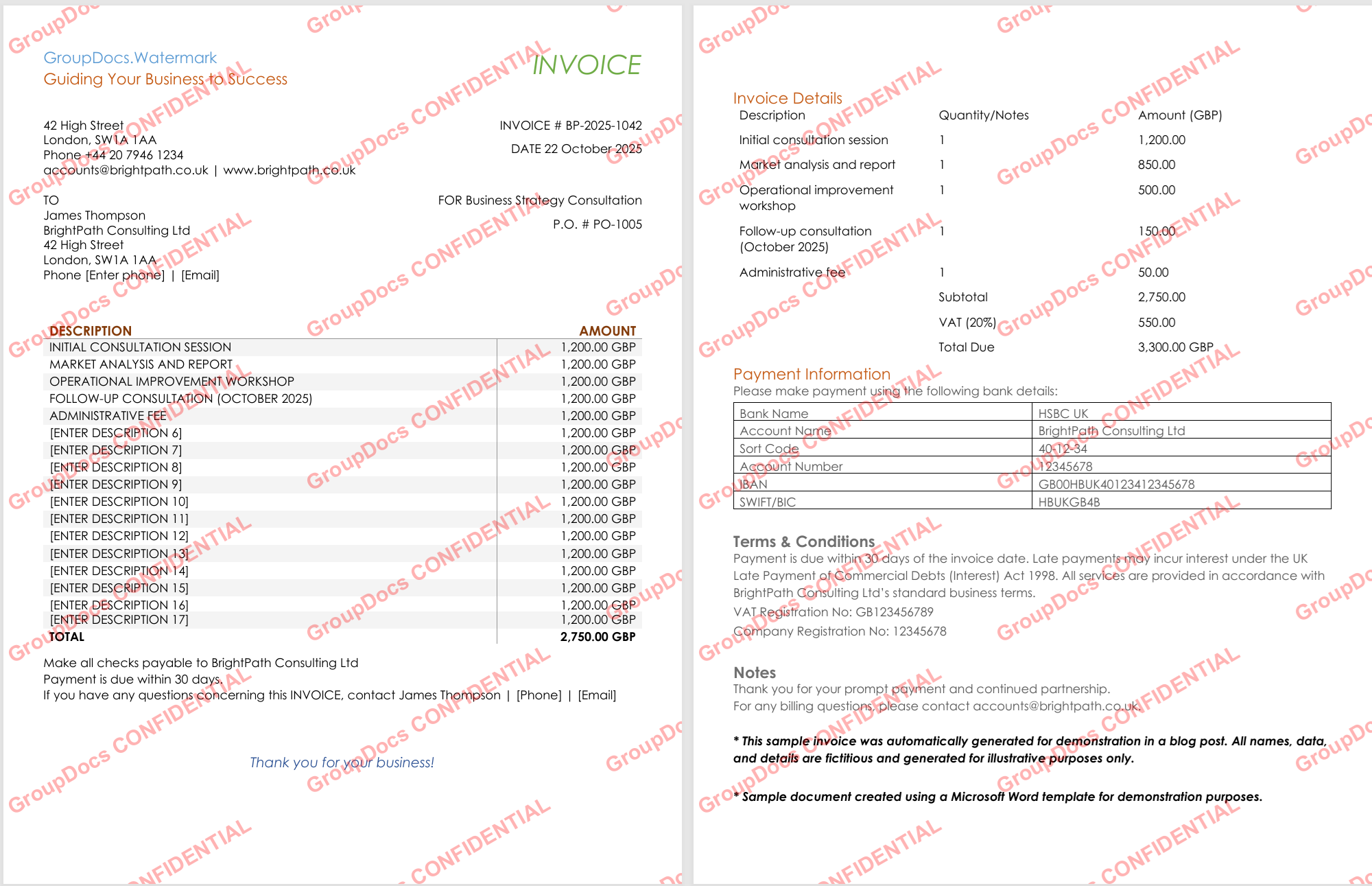
The following code creates a red, semi‑transparent “CONFIDENTIAL” watermark, rotates it ‑30°, and tiles it across every page using TileOptions.
Directory.CreateDirectory(outputFolder);
int processed = 0, failed = 0;

foreach (var filePath in files)
{
    try
    {
        using var watermarker = new Watermarker(filePath);
        var watermark = new TextWatermark(watermarkText,
            new Font("Arial", 19, FontStyle.Bold))
        {
            ForegroundColor = Color.Red,
            Opacity = 0.3,
            RotateAngle = -30,
            TileOptions = new TileOptions
            {
                LineSpacing = new MeasureValue
                {
                    MeasureType = TileMeasureType.Percent,
                    Value = 12
                },
                WatermarkSpacing = new MeasureValue
                {
                    MeasureType = TileMeasureType.Percent,
                    Value = 10
                }
            }
        };

        watermarker.Add(watermark);
        var outPath = Path.Combine(outputFolder, Path.GetFileName(filePath));
        watermarker.Save(outPath);
        processed++;
        Console.WriteLine($"[OK] {Path.GetFileName(filePath)}");
    }
    catch (Exception ex)
    {
        failed++;
        Console.WriteLine($"[FAIL] {Path.GetFileName(filePath)}: {ex.Message}");
    }
}

Console.WriteLine($"Text watermark: {processed} processed, {failed} failed");
Key points:
TileOptionscreates a brick‑like pattern, making the watermark hard to remove without affecting the underlying content.- The same snippet works for PDFs, Word files, spreadsheets and images because
Watermarkerabstracts the format.
Step 4 – Apply a Tiled Logo Watermark
If you prefer a visual brand mark, replace the text watermark with an image. The code below checks that the logo file exists, then tiles it with 40 % opacity and a ‑30° rotation.
if (!File.Exists(logoPath))
{
    Console.WriteLine($"Logo not found: {logoPath}. Skipping image mode.");
    return;
}

Directory.CreateDirectory(outputFolder);
int processed = 0, failed = 0;

foreach (var filePath in files)
{
    try
    {
        using var watermarker = new Watermarker(filePath);
        using var watermark = new ImageWatermark(logoPath)
        {
            Opacity = 0.4,
            RotateAngle = -30,
            TileOptions = new TileOptions
            {
                LineSpacing = new MeasureValue
                {
                    MeasureType = TileMeasureType.Percent,
                    Value = 15
                },
                WatermarkSpacing = new MeasureValue
                {
                    MeasureType = TileMeasureType.Percent,
                    Value = 12
                }
            }
        };

        watermarker.Add(watermark);
        var outPath = Path.Combine(outputFolder, Path.GetFileName(filePath));
        watermarker.Save(outPath);
        processed++;
        Console.WriteLine($"[OK] {Path.GetFileName(filePath)} - logo applied");
    }
    catch (Exception ex)
    {
        failed++;
        Console.WriteLine($"[FAIL] {Path.GetFileName(filePath)}: {ex.Message}");
    }
}

Console.WriteLine($"Logo watermark: {processed} processed, {failed} failed");
Key points:
- The same
TileOptionslogic used for text works for images, giving a consistent look across all pages. Opacitylets the underlying content remain readable while still displaying the brand.

Step 5 – Idempotent Watermarking (Skip Existing Marks)
Running the pipeline multiple times should not stack watermarks on top of each other. This snippet searches for an exact instance of the watermark text before adding a new one.
Directory.CreateDirectory(outputFolder);
int applied = 0, skipped = 0, failed = 0;

foreach (var filePath in files)
{
    try
    {
        using var watermarker = new Watermarker(filePath);
        var criteria = new TextSearchCriteria(watermarkText, false);
        var existing = watermarker.Search(criteria);

        if (existing.Count > 0)
        {
            skipped++;
            Console.WriteLine($"[SKIP] {Path.GetFileName(filePath)} – already contains watermark");
            continue;
        }

        var watermark = new TextWatermark(watermarkText,
            new Font("Arial", 19, FontStyle.Bold))
        {
            ForegroundColor = Color.Red,
            Opacity = 0.3,
            RotateAngle = -30,
            TileOptions = new TileOptions
            {
                LineSpacing = new MeasureValue
                {
                    MeasureType = TileMeasureType.Percent,
                    Value = 12
                },
                WatermarkSpacing = new MeasureValue
                {
                    MeasureType = TileMeasureType.Percent,
                    Value = 10
                }
            }
        };

        watermarker.Add(watermark);
        var outPath = Path.Combine(outputFolder, Path.GetFileName(filePath));
        watermarker.Save(outPath);
        applied++;
        Console.WriteLine($"[OK] {Path.GetFileName(filePath)} – watermark applied");
    }
    catch (Exception ex)
    {
        failed++;
        Console.WriteLine($"[FAIL] {Path.GetFileName(filePath)}: {ex.Message}");
    }
}

Console.WriteLine($"Smart batch: {applied} applied, {skipped} skipped, {failed} failed");
Key point: TextSearchCriteria with false for case‑sensitivity ensures we only skip documents that already contain the exact watermark we intend to add.
Step 6 – Replace an Outdated Logo Across the Folder
When a company re‑brands, you may need to swap every old logo with the new one. The code combines two image‑search strategies – DCT‑hash for precision and colour‑histogram for tolerance – then overwrites the image data of each match.
if (!File.Exists(oldLogoPath) || !File.Exists(newLogoPath))
{
    Console.WriteLine("Old or new logo file missing – aborting replacement.");
    return;
}

Directory.CreateDirectory(outputFolder);
byte[] newLogoData = File.ReadAllBytes(newLogoPath);
int replaced = 0, notFound = 0;

var settings = new WatermarkerSettings
{
    SearchableObjects = new SearchableObjects
    {
        PdfSearchableObjects = PdfSearchableObjects.All
    }
};

foreach (var filePath in files)
{
    try
    {
        using var watermarker = new Watermarker(filePath, settings);
        var dct = new ImageDctHashSearchCriteria(oldLogoPath) { MaxDifference = 0.4 };
        var hist = new ImageColorHistogramSearchCriteria(oldLogoPath) { MaxDifference = 0.5 };
        var criteria = dct.Or(hist);
        var found = watermarker.Search(criteria);

        if (found.Count == 0)
        {
            notFound++;
            Console.WriteLine($"[--] {Path.GetFileName(filePath)} – old logo not found");
            continue;
        }

        foreach (PossibleWatermark wm in found)
        {
            try
            {
                wm.ImageData = newLogoData;
            }
            catch
            {
                // Some watermark types cannot be overwritten – ignore.
            }
        }

        var outPath = Path.Combine(outputFolder, Path.GetFileName(filePath));
        watermarker.Save(outPath);
        replaced++;
        Console.WriteLine($"[OK] {Path.GetFileName(filePath)} – {found.Count} logo(s) replaced");
    }
    catch (Exception ex)
    {
        Console.WriteLine($"[FAIL] {Path.GetFileName(filePath)}: {ex.Message}");
    }
}

Console.WriteLine($"Logo replacement: {replaced} updated, {notFound} without old logo");
Key points:
WatermarkerSettingswithPdfSearchableObjects.Allenables the search to see logos that are stored as PDF artifacts.- Combining DCT‑hash and colour‑histogram criteria catches both exact vector logos (Office) and rasterised versions (PDF).

Best Practices & Tips
- Create the output folder once (
Directory.CreateDirectory) – the method is idempotent and avoids race conditions. - Log progress – the console output in each step makes it easy to see which files succeeded or failed.
- Tune
OpacityandRotateAngleper brand guidelines; a value between 0.3–0.5 is usually enough to be visible but not intrusive. - Use the idempotent smart batch for any recurring job (e.g., nightly branding updates).
- Test logo replacement on a small sample before running across the entire repository to ensure the search criteria are correctly tuned.
Troubleshooting Common Issues
| Symptom | Likely Cause | Fix |
|---|---|---|
| No files are processed | ScanFolderForSupportedFiles returned an empty list |
Verify InputFolder path and that the folder contains supported formats (PDF, DOCX, PPTX, XLSX, PNG, JPG, etc.) |
| Watermark not visible | Opacity set too low or colour blends with background | Increase Opacity (e.g., 0.5) or switch ForegroundColor to a contrasting hue |
| PDF logos not found during replacement | Logos added as content‑stream draw operators (not searchable) | When seeding logos, add them with PdfArtifactWatermarkOptions so they become searchable artifacts |
Exception System.Drawing.Common on Linux |
Missing native GDI+ libraries | Install libgdiplus on the target Linux machine or enable Unix support in the .csproj (<RuntimeHostConfigurationOption Include="System.Drawing.EnableUnixSupport" Value="true" />). |
Conclusion
You now have a complete, production‑ready pipeline that can:
- License the library.
- Detect supported documents automatically.
- Apply tiled text or logo watermarks.
- Run safely multiple times without creating duplicates.
- Replace an old corporate logo across an entire folder.
These building blocks can be mixed and matched to fit any branding or document‑protection workflow in .NET.